This will create a directory called WWW and a document
inside
the directory called index.html.
When you type in create_homepage and hit enter it will seem like nothing
happened. It will just give you the $ sign prompt again.
That is OK,
if you type in DIR it will show you there is now a WWW directory, and
inside that WWW directory is a file that was created called index.html.
The index.html document is your default homepage. You will have
to make a web page (explanation below)
and then name it index.html. Then you will have to ftp
the file to your www directory and overwrite the index.html document that
was created.
This will be your homepage Web address:
http://www.student.montana.edu/~username
where YOU supply the user name.
There are many ways to make a web page. The easiest way
is to use an HTML editor. The advanced editions of Netscape, and Internet
Explorer all allow you to make an html document. That
is all a basic web page is, and HTML document (HyperText Markup Language).
When you make a Web page in a HTML editor you don't have to type in the
tags, the editor does it for you behind the scenes. The tags are talked
about below. If you don't have an editor with your Web browser you can
also go to downloads.com and download a
free html editor. (Microsoft Word will also create a Web page, but
I suggest you do not use Word for this assignment, it doesn't
create an html document, it creates a XML document which is much
harder to edit and ftp.)
HTML documents have two parts when viewed in a text
editor like notepad: (and if you use the tags below you can create
the whole Web page in notepad, the only difference is you have to
type in the tags below yourself.)
-
The text that ends showing up when viewed in a web browser.
-
And the HTML tags that tell the browser how to display the
images and text.
When you create a Web page in an HTML Editor, you
don't have to type in the tags, the editor creates them for you behind the
scenes. If you use a text editor like Notepad, then you have to type the
text and the tags yourself. I prefer the second way (text editor) so I can
control every aspect of the Web page. Using a Web editor is the easiest
way. You can do either way for this assignment.
To take a look at what HTML code looks like go to the Pulldown
menu VIEW above and then according to which browser your using select PAGE
SOURCE in Netscape or just SOURCE in Internet Explorer. (If your using
some other browser...experiment I guess).
You should now see a document that has tags which are
text in brackets <>,
and just text.
Any text you see inside < > are considered tags.
Tags are instructions to the browser how to display the text. Here is an
example how to center text:
-
<center> This text would be
centered </center>
This text would be centered
As you see the when your done centering the text you use
the same tag but with
a / inside the brackets to end the instruction <center></center>.
The following explains HTML and some of the tags
associated with creating your own HTML. Below that is an explanation on
how to take a picture from the Internet and insert it into your Web page,
and beyond that is an explanation on FTP and how to host your Web page on
TREX2.
Here are the other main tags:
<html> </html> This
starts the html page and the closing bracket is at the end
<title> </title>
Defines the title of the page
<body> </body> This
is where the main part of the page is defined.
In the body tag you can also describe the background
<body bgcolor="ffffff">
You can define the font color the same way:
<font color="000000">
</font>
And font size
<font size=+2 color="112233"> </font>
Other ways of defining font size are by declaring the text
a heading, there are six different headings
<h1> text </h1>
<h2> text </h2>
......
......down to
<h6> text </h6>
C0LORS are defined with three variables RGB, as you notice
above when I define a color I use 6 digits. The first two are the RED variable,
the next two are the GREEN amount and the last two are the BLUE amount.
You can make any color you want by changing these variables.
The amounts are 0 - F or 16 levels. It's a Hexdecimal
representation of numbers.
So the following:
<color = "ffff00">
would mean RED = 1616 GREEN = 1616 and BLUE would be
at 00.
Full red, full green and no blue makes YELLOW.
There are several tables out on the internet that tell
you what do use to make certain colors.
Other very useful tags
<b> text </b>
Bold
<u> text </u>
Underline
<i> text </i>
Italized
<p>
&nbs p; Makes a new paragraph
<br>
&n bsp; start a new line
The <br> doesn't need a closing </br> and it's
also the most used tag.
HYPERTEXT LINKS
To make your text a hypertext link use the following:
<a href="http://webpage"> link
</a>
Hint: if the webpage your trying to link is in your same
folder you don't have to put the whole http://webpage stuff you
can just link it like this
<a href="page.html"> link
</a>
PRETTY PICTURES
The tag to display a picture is
<img src="picture.gif">
Most web browsers use pictures with the extensions .jpeg,
.jpg, or .gif. So if you are trying to display a scanned in picture, make
sure you scan it in as a .jpg or .jpeg. The other, .gif is usually drawings
or animations.
To take a picture from someone else on the web, this is
how you do it:
-
Right click on the image
-
Choose save as
-
Do not change the three letter extension, but you can name
it anything you want.
These are the main tags to making a web page.
MSU WEB PAGES
If you have an account with TREX2 this is how to display
your web page to the world so you can wow your friends and family.
-
Make a dir in your home directory called www.
-
Save your web page as index.html.
-
FTP your file to the www directory in your TREX2 account.
Remeber you must FTP the Web page and any photos that are
used in the Web page. Pictures are not embedded they are
linked, so the best way to do it is keep the pictures in the
same folder as your Web page when creating it, and when you
FTP it over to the Server.
FTP
- FTP is transferring the files from a client computer to a host
computer.
- The computer labs have ws_ftp software. Use that if your in the labs.
- If at home you can also use WS_ftp or any other free ftp from the
Internet. Go to www.downloads.com and do a
search for ftp software.
- After you download the software you can use it to transfer your files
to TREX2.
- Most FTP software is very similar to the explanation of WS_FTP
below.
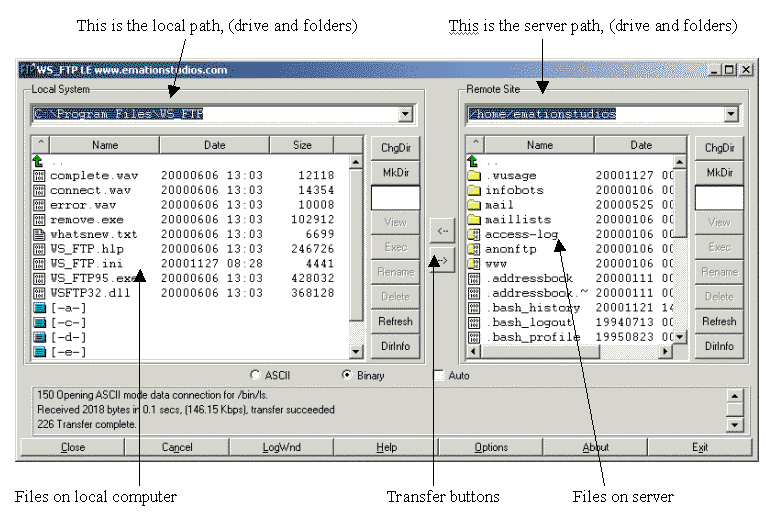
- The first step is to log on to the Server.
- trex2.oscs.montana.edu is your host name.
- leave host type as automatically detect
- Profile name is anything you want to remember the connectiion
- Use your TREX2 username and password
- After you log on the left window is your client computer, and the
right window is the server computer.
- Click on folders (or drives) to get the client to where your Web page
and pictures are residing.
- Click on folders on the server side so you the window is showing the
contents of the WWW folder.
- You probably will have to delete the default index.html that is
already in the WWW folder before you move your new index.html to the
server. Click on the file and hit the delete key in the column
of buttons just to the left of the contents window.
- Highlight the files on the client you would like to transfer and
click
on the transfer button.
- Make sure you transfer the Web page and the picture.
Your web page address will be:
http://www.student.montana.edu/~yourloginname
You can use an html editor like Word or Netscape to make your web
pages or
You can use Notepad and type in the format above.
Which reminds me to show how to do a link for email:
<a href="mailto:yourloginname@montana.edu">
mail me </a>
To turn in your homework follow the instructions in the
Lab Manual.