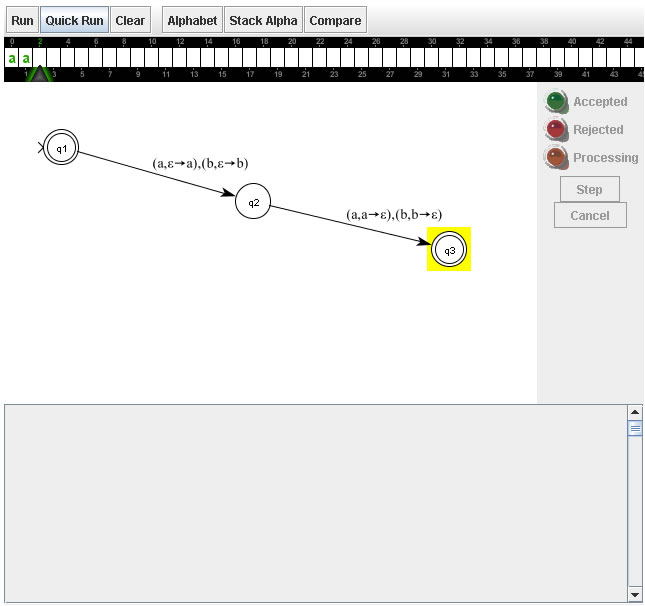
This tutorial will explain how to use the Pushdown Automaton simulator to test PDAs with strings of input and also how to save and load PDAs from files in the application version.
After building a PDA, there are two different methods you can used to test the PDA on a string. The first way is to enter the desired string into the input tape and click on the Quick Run button, this will skip the simulation process and simply report whether the string is accepted or rejected.
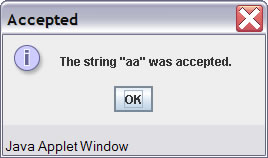
The second way is to enter the desired string into the input tape and click the Run button. This will start the simulation process.
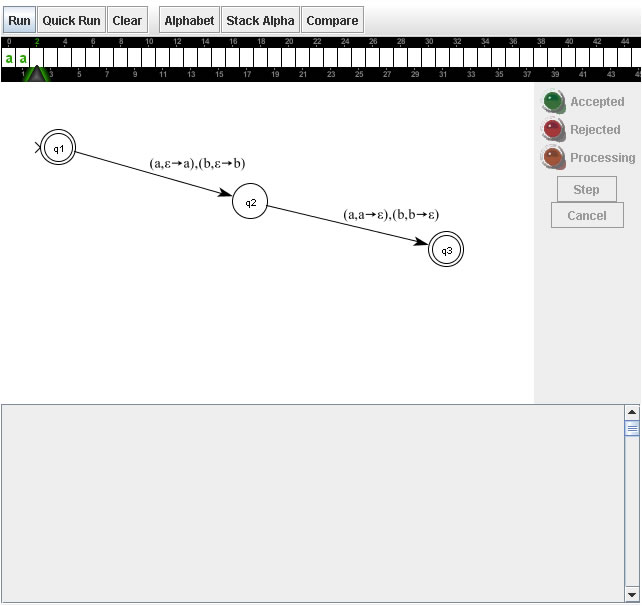
When the simulation is started one or more status display panels will appear in the pane underneath the pda. These status panels show the current state the pda is in or could be in if it is non-deterministic.
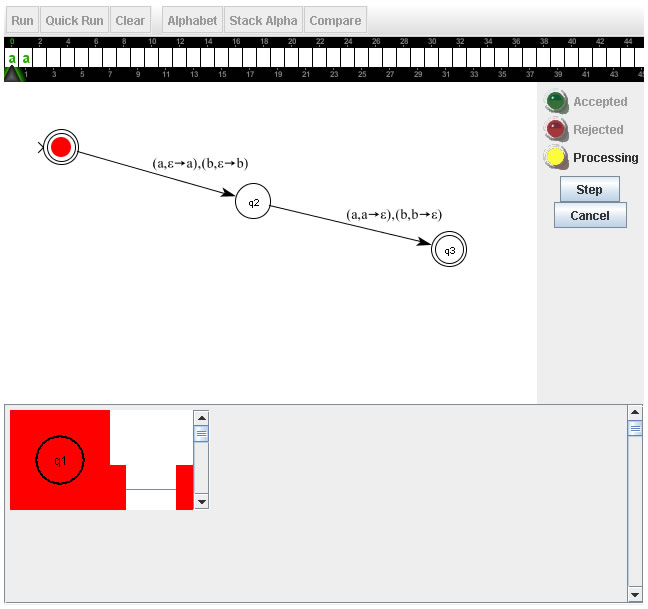
To continue the simulation process press the step button. Each time the step button is pushed a symbol from the input tape is consumed. After each symbol is consumed the epsilon transitions are followed.
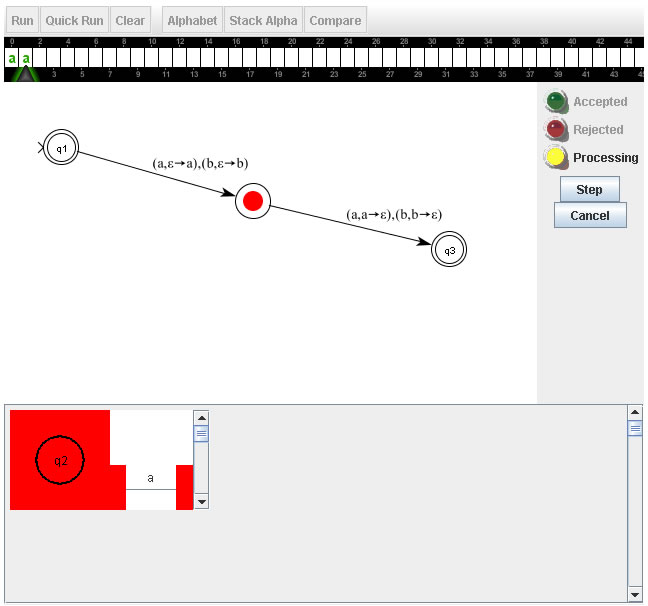
Continue pressing the step button until the machine is done. After completion pressing the step button again will turn any movers in a final state green and produce a confirmation sound and light if any movers are in a final state and a rejection sound and light if no movers are in a final state.
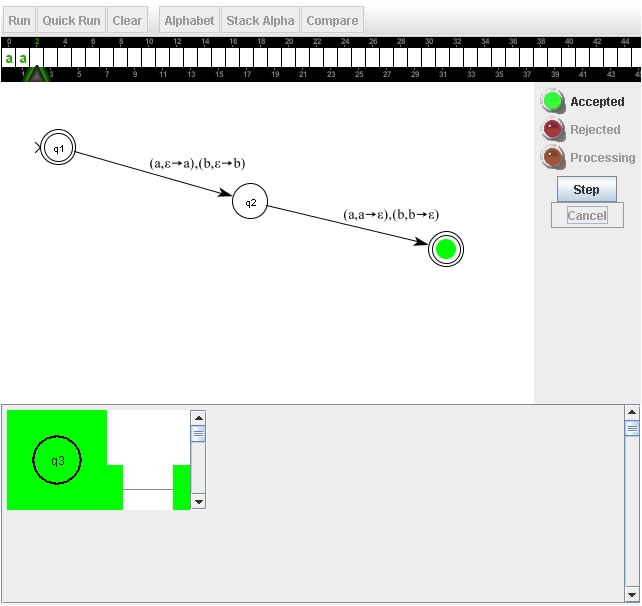
Pressing step again will reset the machine. Accepting states and their corresponding status panels will be colored green while the running states are red and the dead states are grey.
When running a non-deterministic PDA like the one shown below, the machine can be in more than one state and each state that the machine is in may have more than one stack.
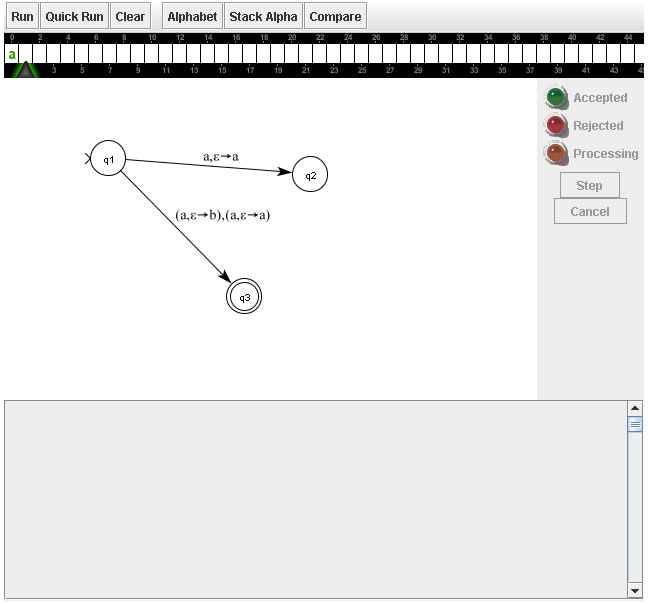
Keep in mind that this doesn't mean that the PDA is more than one state or that it has more than one stack this is just a representation of all the state/stack combinations in which the PDA could be. Upon running the machine the lower panel will show which states the PDA might be in along with their corresponding stacks. The following image shows the PDA above after pressing run and pressing step once to consume the 'a'.
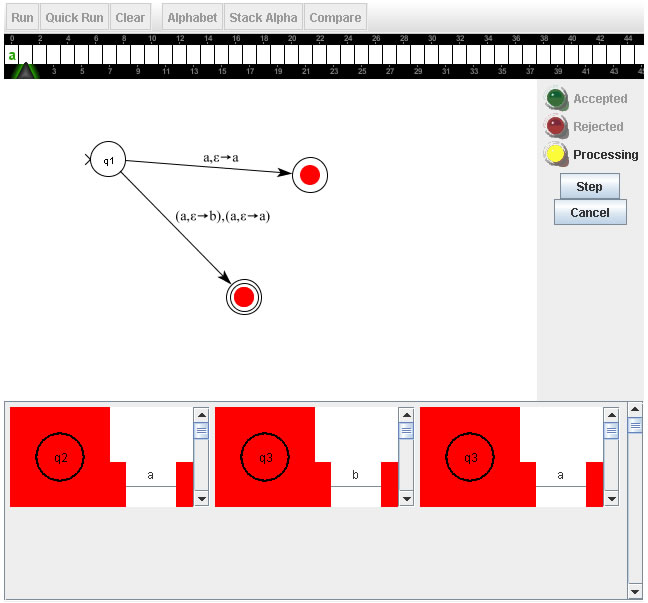
The multiple, nondeterministic computations view can be difficult to grasp all at once. Just remember that at each step of a computation, all computations are synchronized to read the next input symbol. That is, each time the Step button is pushed, each of the active nondeterministic computations MUST read the next input symbol (i.e., there can be no transitions taken when the Step button is pushed that do not read the current input symbol). The synchronization is done in that as part of the current step, in each active nondeterministc computation, the current input symbol is read, valid transitions are followed to the next states, and if any of those target states have valid transitions that do not require reading an input symbol from the tape they are immediately taken as well as part of this step. This ensures that at the next step, each remaining computation is synchronized to read the next input symbol from the tape.
Users are provided with ways to manage the complexity of nondeterminism as well, as described next.
When you get into a position like this with multiple state/stack combinations shown you can remove a state/stack combination by right clicking on its panel and selecting remove.
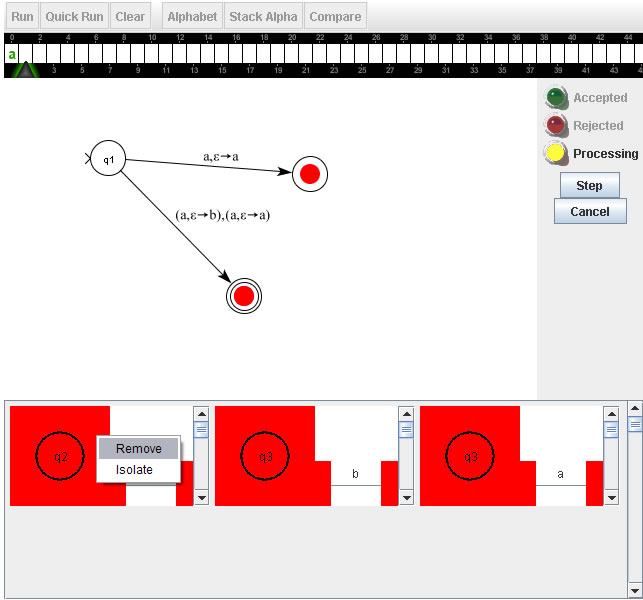
Notice how in the image below that panel and it's corresponding mover are gone. You might also want to keep just one combination. This can be done by right clicking on the panel that you want to keep and selecting "Isolate", which will keep that computation and remove all the others.
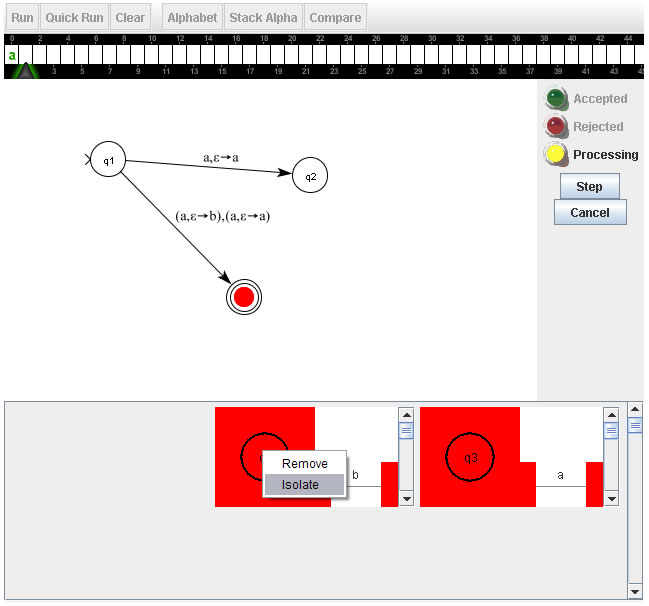
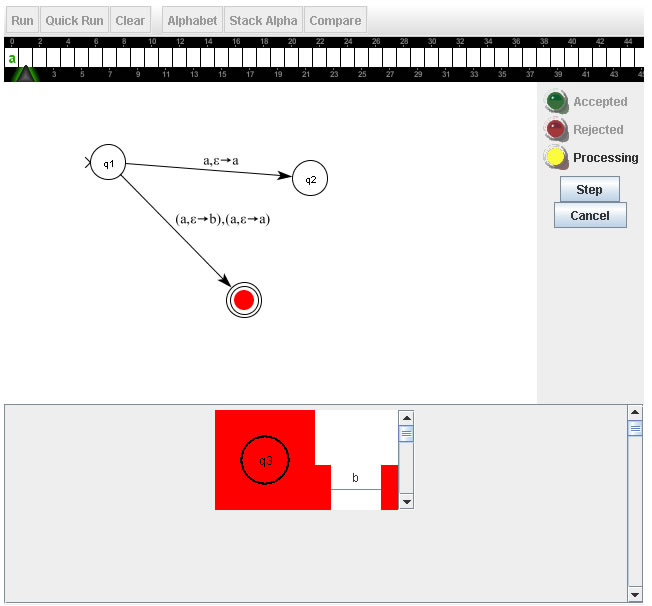
Now the selected combination is kept and all the others are removed.
Clicking the compare button will run the PDA through a test suite to test its correctness. In some instances the compare button may not be active, depending on how an exercise was constructed.

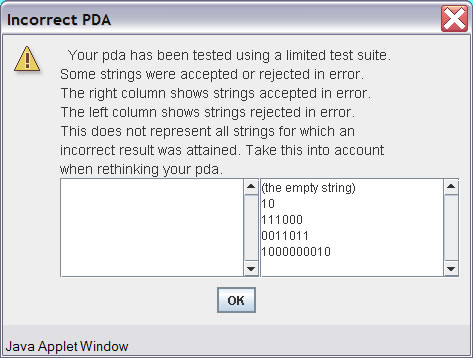
If the PDA is found to be incorrect, a window will appear with a two lists of strings. One list will show the strings that were accepted that should have been rejected and the other will show strings that were rejected that should have been accepted.
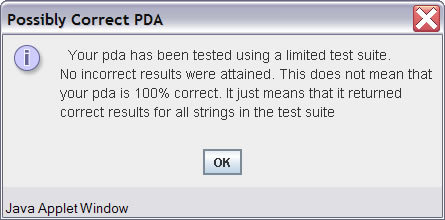
If the PDA passes on all the strings in the test suite a dialog will display showing that it passed all the tests. Note that this does not mean that the PDA is 100% correct just that it passed all the tests in the test suite.
Saving and loading PDAs from files can be done in the application version by pressing either the Save, Save As and Load buttons. This functionality works in the standard way.

This tutorial is a work in progress, please e-mail at ross@cs.montana.edu me with any questions/suggestions.